General Settings
The General Settings page is the central hub for managing your website's core identity, visual appearance, and key functional elements. From this dashboard, you can configure your site's contact information, mobile app promotion, theme colors, and trust-building features.
Settings configured here directly impact your website's SEO, user experience, and brand presentation. Ensure all information is accurate and kept up-to-date.
General Website Information
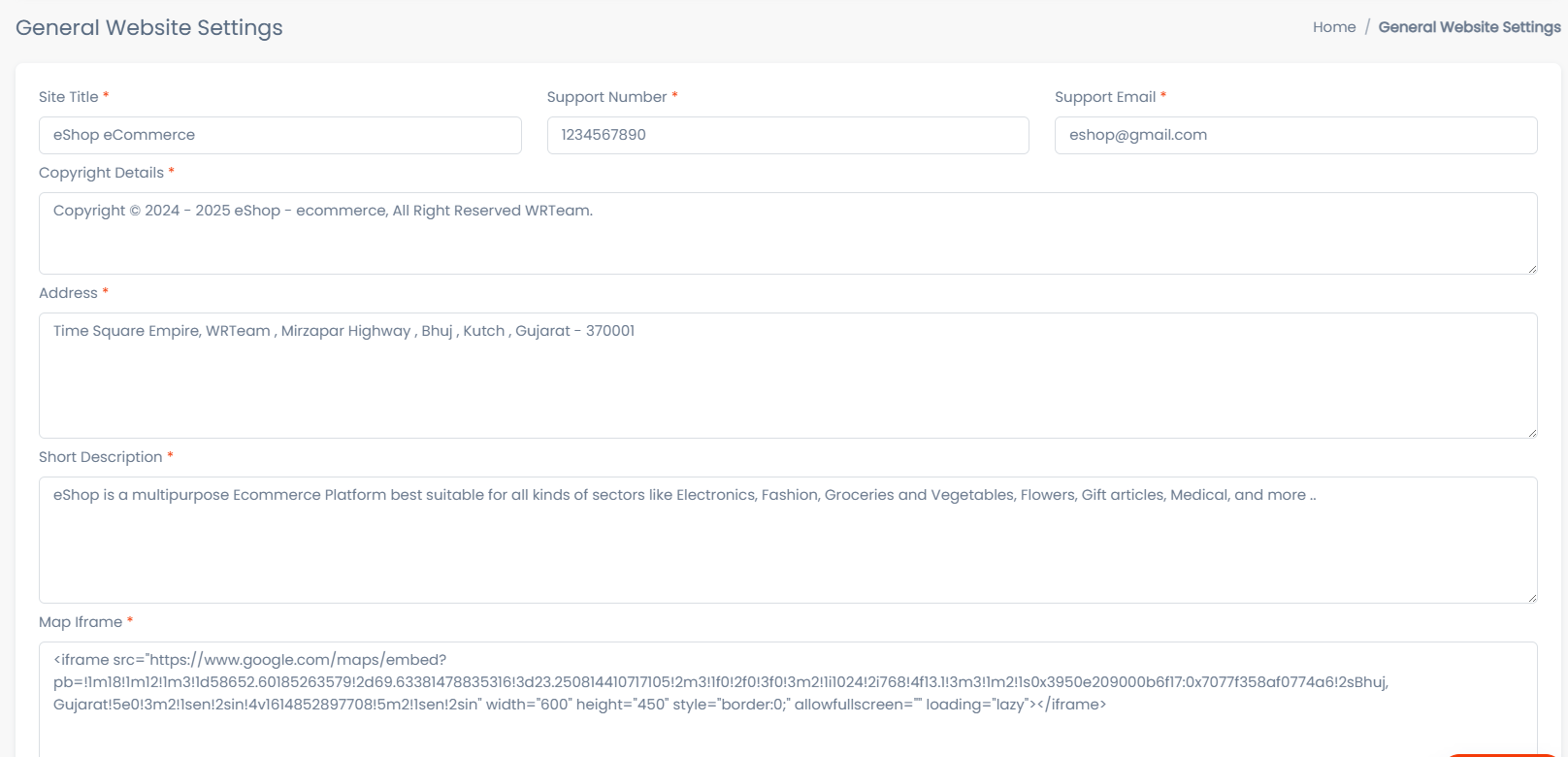
This section establishes the fundamental identity of your e-commerce platform.
Configuration Fields
- Site Title: The primary name of your website. This is displayed in browser tabs and is critical for search engine results.
- Support Number: The dedicated phone number for customer inquiries.
- Support Email: The official email address for support tickets and communication.
- Copyright Details: The legal copyright text displayed in the website footer (e.g., "© 2024 MyStore. All rights reserved.").
- Address: The physical business address of your company.
- Short Description: A concise summary of your business, often used for meta descriptions or social sharing preview text.
- Map Iframe: The embed code from Google Maps to display your physical location on the "Contact Us" page.
- Logo: The main visual identifier for your brand, displayed in the header.
- Favicon: The small icon displayed in the browser tab next to the page title.
App Download Section
This section allows you to promote your mobile applications directly on your website, encouraging users to download your app for a seamless shopping experience.
App Settings
- Enable / Disable: Toggle this switch to show or hide the "Download Our App" section on the homepage.
- Title: The main headline for the app promotion section (e.g., "Shop on the Go!").
- Tagline: A catchy, short phrase to grab user attention.
- Short Description: Explanatory text highlighting the benefits of using the mobile app.
- Promo Header Description: Additional promotional text or a specific call-to-action placed in the header area.
- Play Store URL: The direct link to your app on the Google Play Store (Android).
- App Store URL: The direct link to your app on the Apple App Store (iOS).
Feature Section
Use this section to highlight your store's key value propositions, such as shipping policies, security measures, and support availability. Displaying these clearly builds trust with potential customers.
Feature Highlights
1. Shipping
- Enable/Disable: Toggle to display the shipping highlight.
- Title: (e.g., "Free Shipping")
- Description: (e.g., "On all orders over $50")
2. Returns
- Enable/Disable: Toggle to display the return policy highlight.
- Title: (e.g., "Easy Returns")
- Description: (e.g., "30-day money-back guarantee")
3. Support
- Enable/Disable: Toggle to display the support highlight.
- Title: (e.g., "24/7 Support")
- Description: (e.g., "We are here to help anytime")
4. Safety & Security
- Enable/Disable: Toggle to display the security highlight.
- Title: (e.g., "100% Secure Payment")
- Description: (e.g., "Your transactions are always safe")
Theme Settings
Customize the look and feel of your website to match your brand identity. The available settings depend on which theme layout you are currently using.
Classic Theme Configuration
If you use the Classic layout, these color settings apply:
- Primary Colour: The dominant color used for main navigational elements, buttons, and headers.
- Secondary Colour: The accent color used for hover effects, highlights, and secondary buttons.
- Font Colour: The default color for body text across the site.
Modern Theme Configuration
If you use the Modern layout:
- Theme Color: Select from a range of preset, data-driven color palettes designed for modern aesthetics.
Actions
Once you have configured your settings, use the action buttons at the bottom of the page:
- Update Settings: Saves all current configurations to the database. Always click this after making changes.
- Reset: Clears unsaved changes and reverts the form to the last saved state.