FAQ Management
FAQ (Frequently Asked Questions) Management allows you to create and manage a collection of common questions and answers that help customers find information quickly without contacting support.
Why Use FAQs?
- Reduce support workload by answering common questions
- Improve customer experience with self-service help
- Provide instant answers 24/7
- Build trust by addressing concerns proactively
- Improve SEO with relevant content
FAQ Dashboard
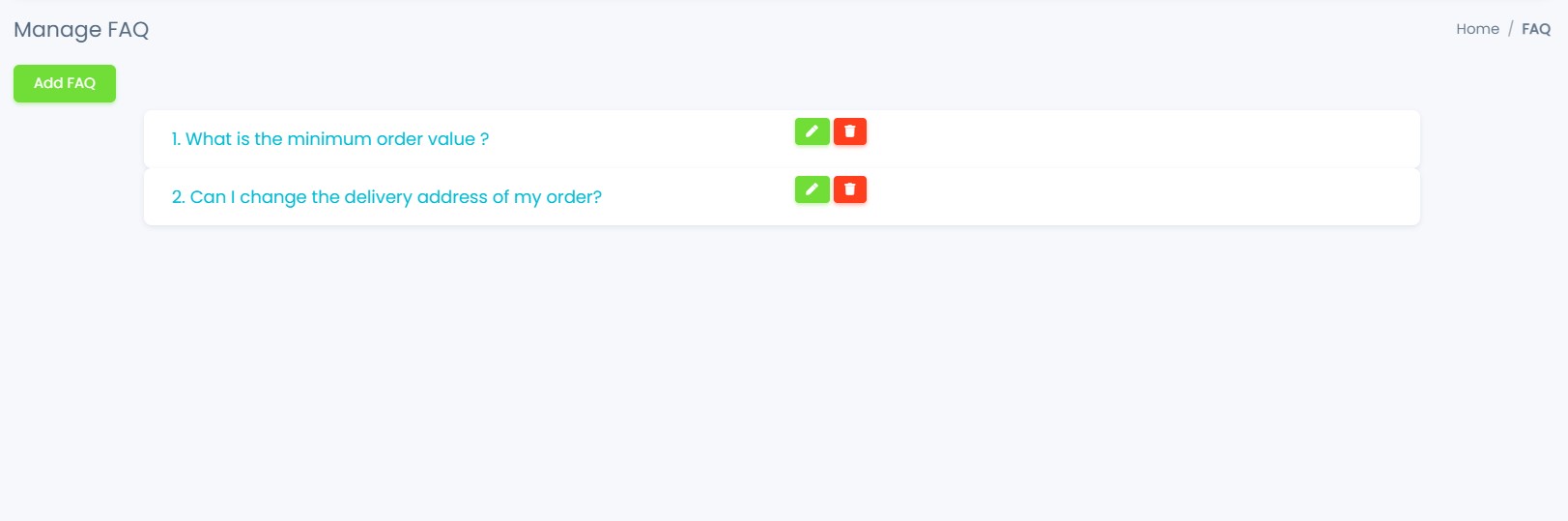
The FAQ dashboard displays all created FAQs with their questions, answers, and status.
Table Information:
- Question: The FAQ question text
- Answer: Brief preview of the answer
- Status: Active (visible on website) or Inactive (hidden)
- Created Date: When the FAQ was added
- Actions: Quick action buttons
Adding a New FAQ
Step 1: Click "Add FAQ"
Click the "Add FAQ" button located on the right side of the dashboard.
Step 2: Fill FAQ Form

A form will appear with the following fields:
1. Question
- Enter the frequently asked question
- Tips:
- Write questions as customers would ask them
- Keep questions clear and concise
- Use natural language
- Start with question words (What, How, When, Why, Can)
Examples:
- "How do I track my order?"
- "What is your return policy?"
- "Do you ship internationally?"
- "How long does delivery take?"
2. Answer
- Provide a clear, helpful answer to the question
- Tips:
- Be specific and detailed
- Use simple language
- Include step-by-step instructions if needed
- Add links to relevant pages
- Keep answers concise but complete
Example Answer:
You can track your order by:
1. Logging into your account
2. Going to "My Orders"
3. Clicking on the order number
4. Viewing the tracking information

You will also receive tracking updates via email.
3. Status
- Active: FAQ is visible on the website
- Inactive: FAQ is hidden from customers
When to use Inactive:
- Preparing FAQs for future publication
- Temporarily hiding outdated information
- Testing new FAQ content