Language Settings
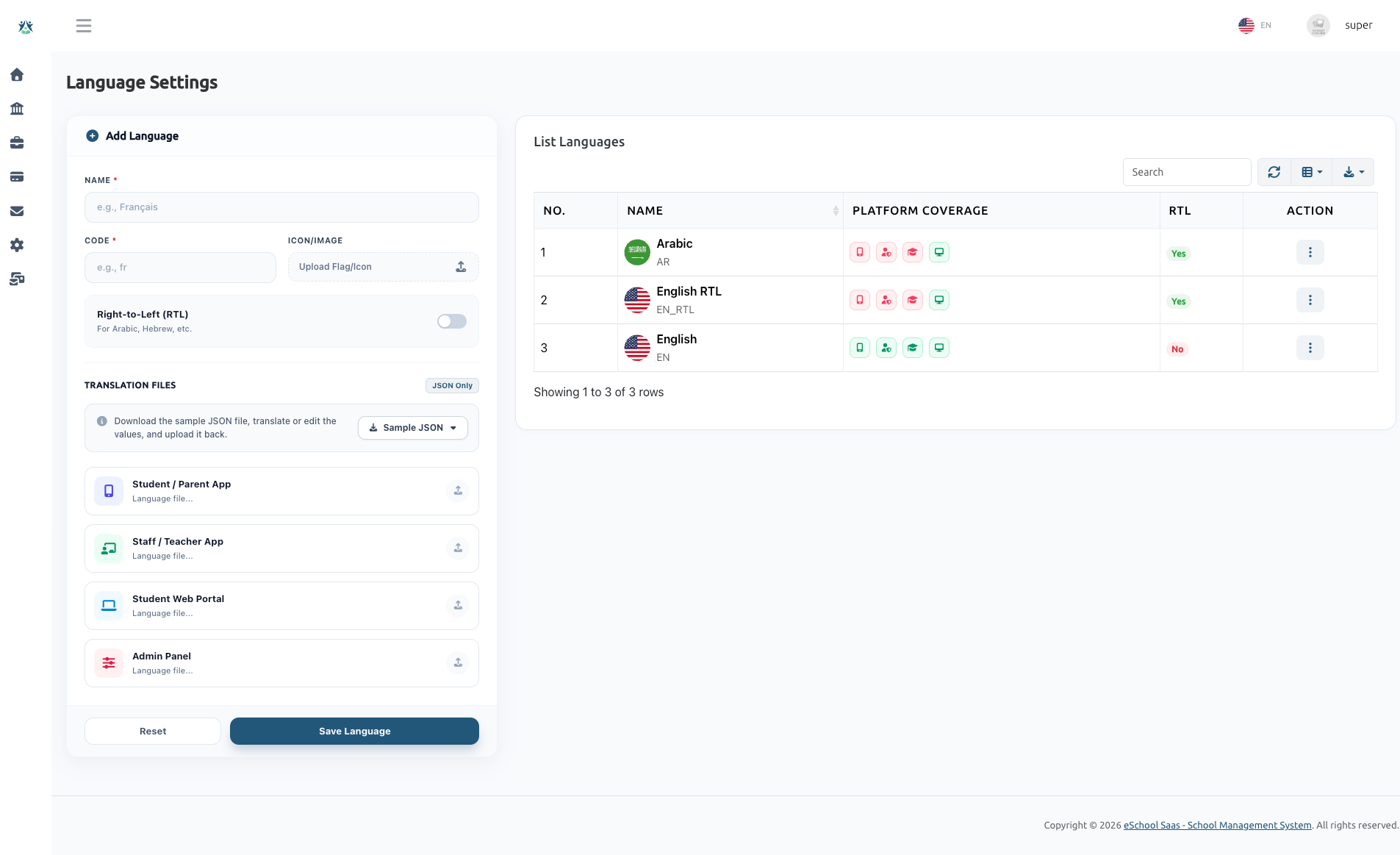
APP LOCALIZATION (LANGUAGE SETTINGS)
The App Localization Module empowers Super Admins to easily translate and manage multiple languages simultaneously across all eSchool SaaS platforms: the Student/Parent App, the Staff/Teacher App, the Student Web Portal, and the Admin Panel.
Navigate to Super Admin Panel → Language Settings.
Overview & Key Features
- Multi-Platform Coverage: Upload and manage individual translation JSON files for four distinct platforms.
- Right-to-Left (RTL) Support: Toggle RTL layouts for languages like Arabic or Hebrew; the system and apps will automatically flip the UI direction when this language is selected.
- Visual Platform Coverage Indicators: The list table shows at-a-glance icon badges representing which platforms currently have translation files uploaded for each language.
- Sample JSON Downloads: Download base English sample JSON files to quickly translate and upload for any platform.
- Safe Deletion Checks: The system prevents accidental deletion of the base English language, the current default language, or any language assigned to active users.
Adding a New Language
Step-by-Step Guide:
- Basic Info: Enter the Native Name (e.g., Français, العربية) and Language Code (e.g., fr, ar).
- Icon & RTL: Upload a flag icon representing the language. If the language is written Right-to-Left, toggle the RTL switch on.
- Translation Files (JSON):
- You can download sample JSON files by clicking the Sample JSON dropdown.
- Translate the values in the JSON file using your text editor.
- Upload the completed JSON files into their respective platform slots:
- Student/Parent App
- Staff/Teacher App
- Student Web Portal
- Admin Panel
- Save: Click Save Language to submit. The new language will immediately appear in the List Languages table and become available for selection across the system.
Editing & Managing Language Files
Editing a Language:
- Click the Action Menu (⋮) → Edit next to a language in the list.
- In the Edit Modal, you can modify the Name, Code, Icon, and RTL setting.
Manage JSON Files:
- If a translation file is already uploaded, it will show a green Uploaded status. You can click the Download button to retrieve the current file or click Replace to upload an updated version.
- If a translation file is missing, it will display a warning. Click Upload Now to add the missing JSON file.